Secure RDP on a Windows SMTP VPS to protect more than remote access. If an attacker takes over your administrator account, they may change mail-server settings, steal SMTP credentials, or send unauthorized messages that damage your IP reputation.
The goal is to protect management access without interrupting legitimate email delivery.
Secure RDP on a Windows SMTP VPS: Why It Matters
Remote Desktop Protocol (RDP) lets administrators manage Windows Server and applications such as MailEnable or SmarterMail. Its default TCP port is 3389.
A Windows SMTP VPS also handles different network traffic, including outbound SMTP on Port 25 and authenticated submission on Ports 465 or 587. Restricting RDP should not accidentally block these mail services.
1. Separate RDP Access From Mail Traffic
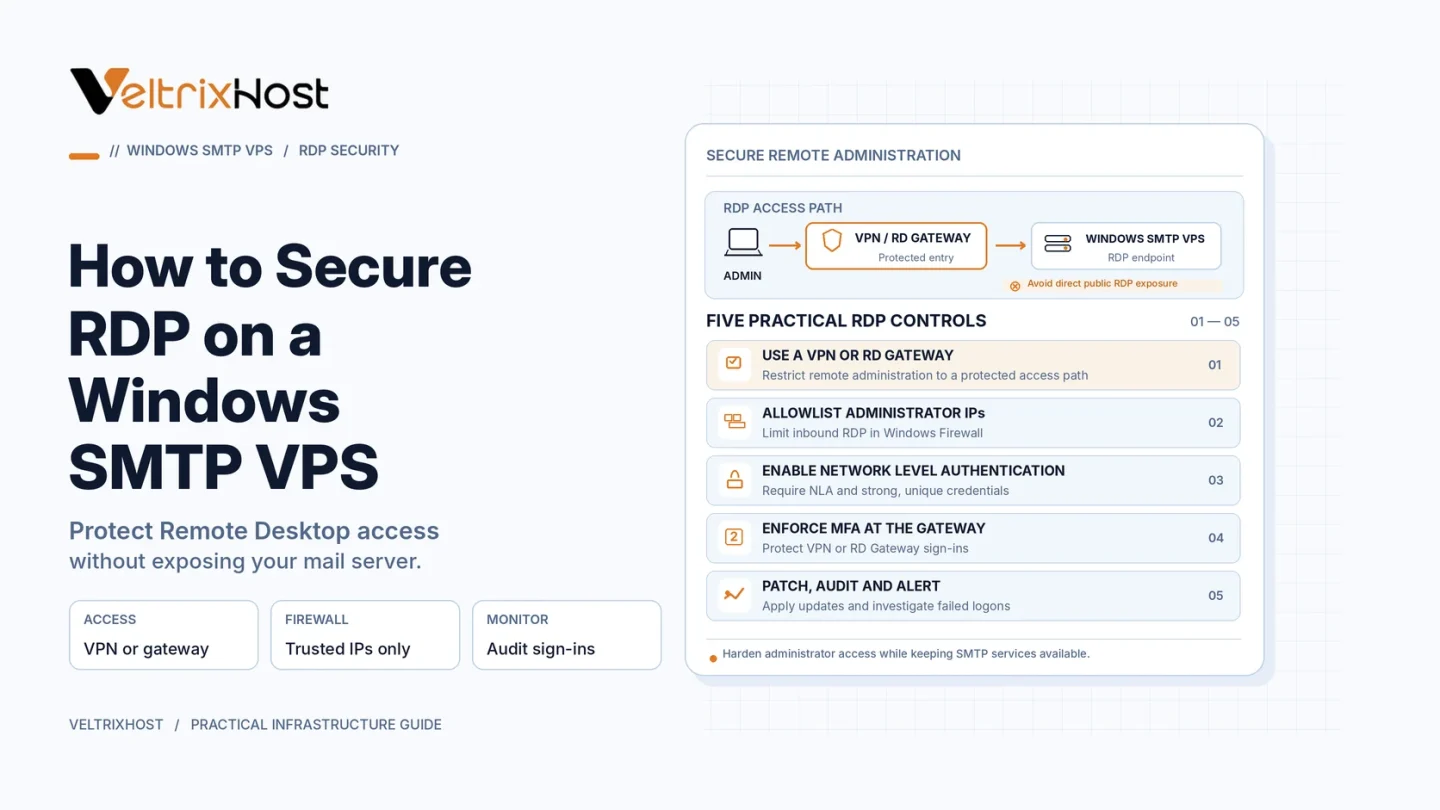
Open Windows Defender Firewall with Advanced Security and review inbound rules. Limit RDP access to a VPN or trusted administrator IP addresses rather than the entire internet.
Keep only necessary mail-service ports reachable. For example, inbound Port 25 is needed if the server receives internet mail, but an outgoing-only relay may not require it.
Before applying firewall changes remotely, confirm that your provider’s recovery console works to avoid locking yourself out.
2. Use a VPN and Network Level Authentication
Prefer a trusted VPN or a properly secured Remote Desktop Gateway over public RDP access. Microsoft’s remote access guidance recommends VPN connections instead of opening RDP directly to the internet.
Enable Network Level Authentication (NLA) so users authenticate before opening a full desktop session. Add multifactor authentication through a compatible VPN or gateway when available. NLA itself is not MFA.
3. Restrict Administrator Privileges
Use individual accounts with strong, unique passwords. Grant RDP access only to staff who need it, and avoid sharing the built-in Administrator account.
Keep SMTP application passwords separate from Windows logins. Disable unused accounts and review the Remote Desktop Users group regularly.
4. Monitor Logins and Mail Activity Together
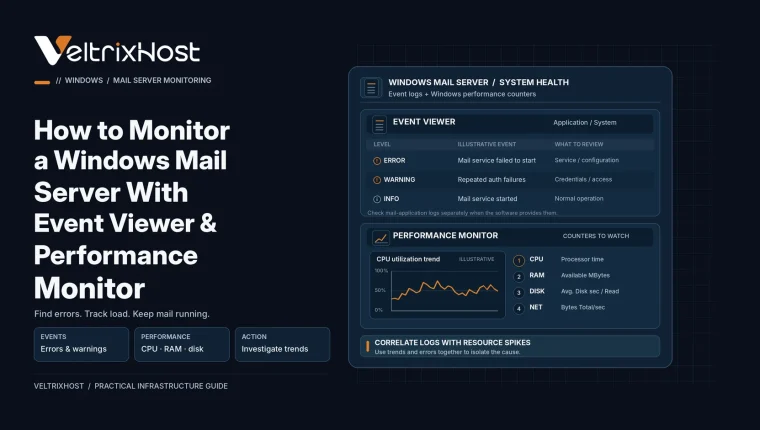
Open Event Viewer → Windows Logs → Security. Review Event ID 4625 for failed logons and Event ID 4624 for successful logons, checking account names and logon types.
Also inspect your mail software for unexpected queue growth, new relay rules, or unusual sending spikes. A successful RDP intrusion can become an email-abuse incident.
5. Patch, Back Up, and Prepare Recovery
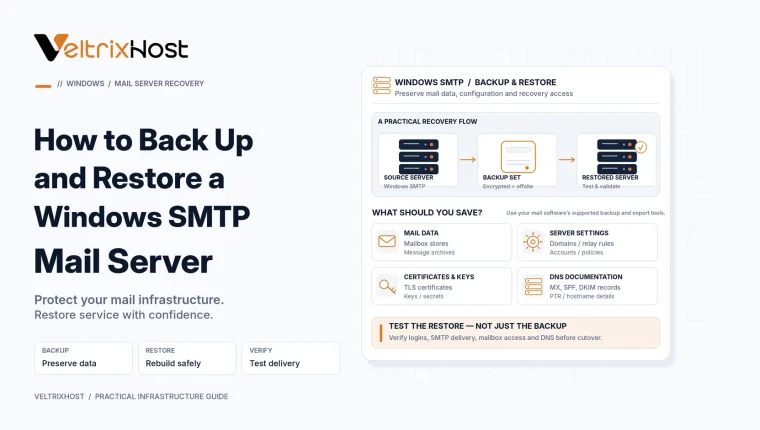
Apply Windows Server and mail-software security updates. Back up configurations, mailbox data where applicable, and cryptographic keys separately from the VPS.
Test a recovery plan that can restore administrator access and mail service without reopening unrestricted RDP.
Choosing a Windows SMTP VPS
VeltrixHost Windows SMTP VPS Hosting provides administrator/RDP access, dedicated IPv4, outbound Port 25, and PTR/rDNS controls. These self-managed features require customers to configure access restrictions and monitoring.
Final Recommendation
To secure RDP on a Windows SMTP VPS, isolate remote administration, require stronger authentication, and monitor both Windows logins and mail queues. Test every firewall change before relying on it.
FAQs
Should I change the default RDP port?
Changing Port 3389 may reduce scan noise, but it does not replace VPN access and firewall restrictions.
Does blocking public RDP stop SMTP delivery?
Not if you restrict only the RDP service and preserve the necessary email rules.
Can I enable MFA for Windows RDP?
Yes, through compatible remote-access gateways or VPN solutions; basic RDP does not automatically include MFA.