A Windows SMTP mail server backup protects more than messages. Losing MailEnable or SmarterMail configuration, credentials, or mailbox data can interrupt orders, password resets, and customer correspondence. A reliable recovery plan must restore the complete mail service, not just Windows.
1. Identify What Your Mail Server Stores
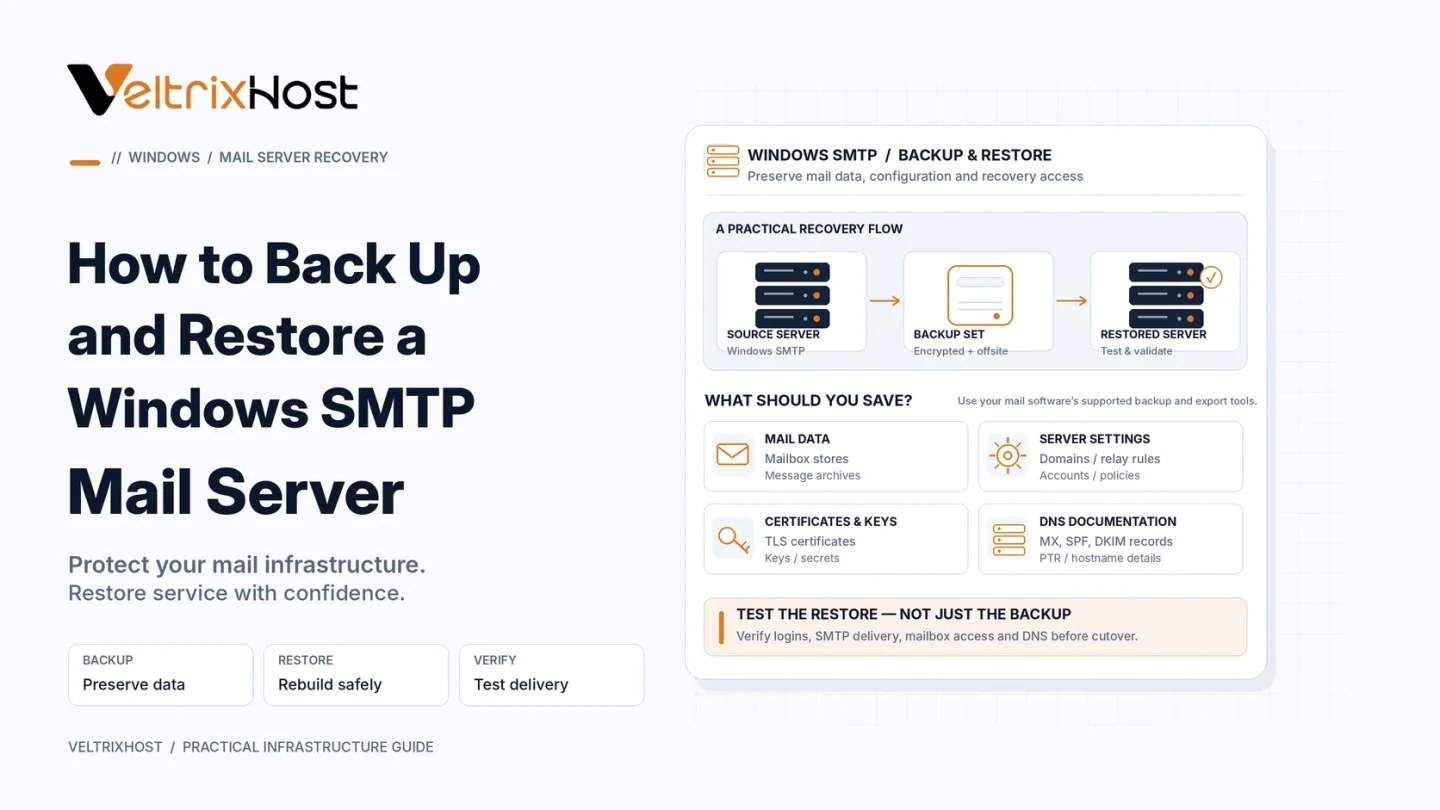
Before starting, record your software version, licensing, domains, administrator accounts, and storage locations. Back up the following:
- Messages and mailboxes: User folders, attachments, and mailbox metadata.
- Configuration: Domains, aliases, connectors, routing rules, and spam policies.
- Security: DKIM private keys, TLS certificates, credentials, and relevant secrets.
- Supporting data: Databases, logs, and queued messages where safely recoverable.
An outbound-only SMTP relay may not contain mailboxes, but its settings and authentication still matter.
2. Back Up MailEnable Safely
MailEnable stores much of its configuration and message data in files. Its backup utility can copy selected configuration, post offices, messages, and logs.
However, the utility does not back up configuration stored in external MySQL or Microsoft SQL Server databases. Include a consistent database backup when applicable.
Use the official MailEnable backup and restore instructions to identify required directories and registry settings. Keep copies away from the production VPS.
3. Back Up SmarterMail
For SmarterMail, preserve system settings, domain configurations, user accounts, and the full message data directory. Include calendars and contacts where your installation stores them.
Use a backup method that captures consistent files while the service is safely paused or through an appropriate snapshot mechanism. Record your installed version before restoring.
4. Create a Windows Server Recovery Copy
Windows Server Backup or another compatible tool can create system and volume backups. However, an operating-system image alone may miss data stored on separate volumes or external databases.
Schedule encrypted off-server backups, protect access keys, and retain multiple recovery points. Define how much data loss and downtime your business can tolerate.
5. Restore and Verify Your Mail Server
On a replacement VPS, install a compatible Windows version and the appropriate MailEnable or SmarterMail release. Recover configuration and mailbox data using the vendor’s procedure.
For MailEnable, restoration can require stopping services, copying saved folders, and restoring relevant registry settings. For SmarterMail, administrators can attach a saved user or rebuild folders from recovered message files.
Before resuming production traffic, verify service accounts, permissions, TLS, SPF, DKIM, and PTR/rDNS. A replacement IP may require DNS updates and fresh reputation checks.
6. Test Delivery Before Closing Recovery
Send controlled inbound and outbound test messages. Check SMTP authentication, message queues, mailbox access, and delivery logs. Confirm that previously stored messages remain readable.
VeltrixHost Windows SMTP VPS Hosting offers Administrator/RDP access, outbound Port 25, and PTR/rDNS controls for self-managed deployments.
Final Recommendation
Treat a Windows SMTP mail server backup as a verified recovery process. Protect mail data and settings together, store backups separately, and rehearse restoration before an outage.
FAQs
Is a Windows VPS snapshot enough?
Not always. It may omit external databases and cannot replace independent, tested backups.
Can I restore mail to a different VPS?
Usually, with compatible software and correct paths, permissions, and DNS settings.
Should I restore old queued emails?
Only after reviewing delivery status to avoid duplicates or inappropriate retries.