Learning how to test SMTP using PowerShell on Windows helps identify blocked ports, incorrect DNS records, and mail-server connection problems. Whether you run MailEnable, SmarterMail, or an application relay, start with connectivity checks before changing server settings.
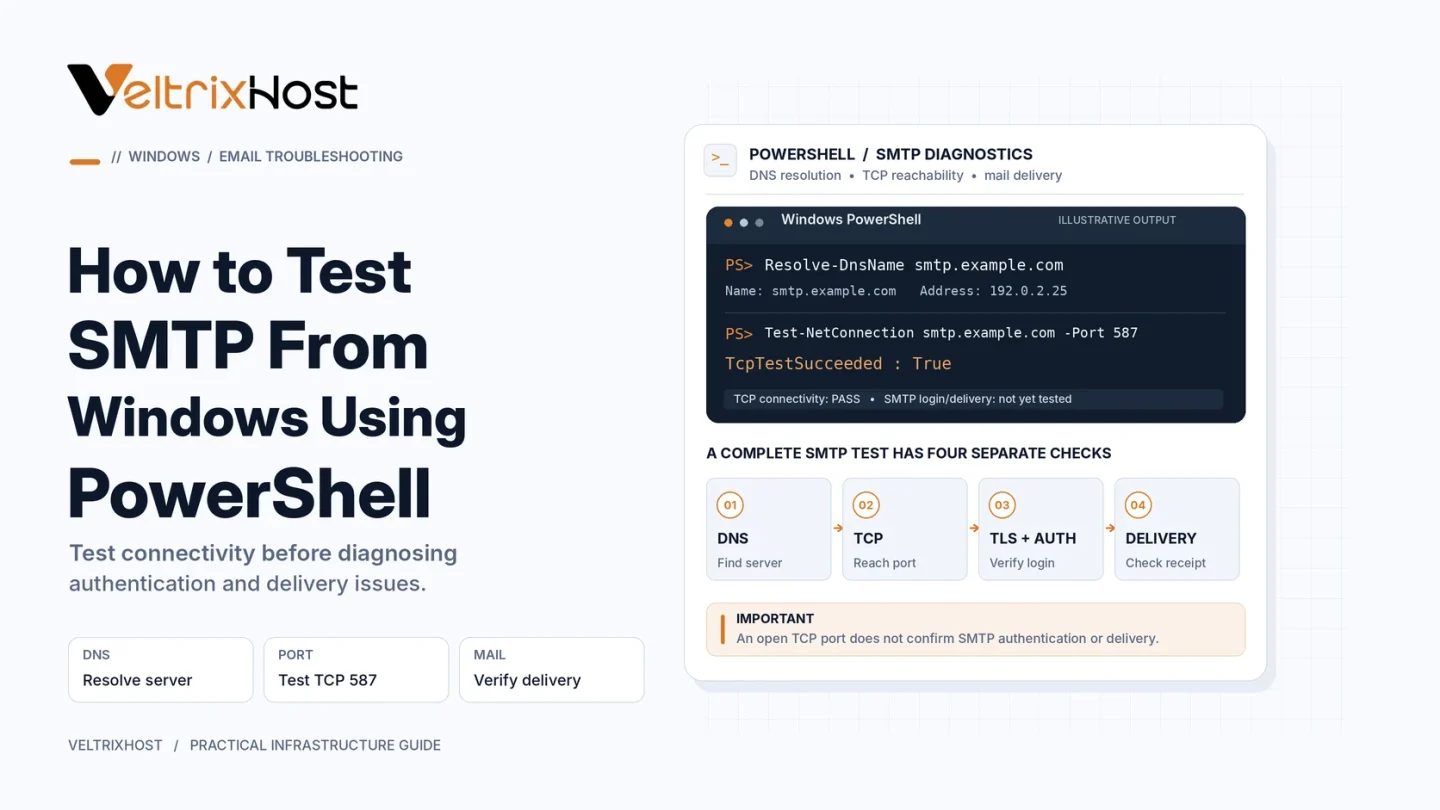
1. Check Your Mail Server DNS
Open PowerShell and confirm the hostname resolves:
Resolve-DnsName mail.example.com
For incoming mail, check your domain’s MX records:
Resolve-DnsName example.com -Type MX
Replace the example names with your own. Incorrect DNS may direct clients to the wrong server or prevent recipients from finding your mail exchanger.
2. How to Test SMTP Using PowerShell
Run these commands from the Windows VPS or client machine:
Test-NetConnection -ComputerName mail.example.com -Port 25
Test-NetConnection -ComputerName mail.example.com -Port 587
Test-NetConnection -ComputerName mail.example.com -Port 465
Each checks whether a TCP connection reaches the chosen host and port.
For direct outbound delivery, test Port 25 against a legitimate recipient MX, not only your own server.
3. Understand the Test Results
| Result | What It Means |
|---|---|
TcpTestSucceeded : True | TCP connection succeeded |
TcpTestSucceeded : False | Connection failed or timed out |
| Hostname lookup error | DNS requires investigation |
A successful TCP test does not prove TLS negotiation, SMTP authentication, message acceptance, or inbox placement.
Microsoft explains the output in its Test-NetConnection documentation.
4. Check Whether SMTP Is Listening
On the mail server, inspect local listening ports:
Get-NetTCPConnection -State Listen -LocalPort 25
If no listener appears, verify your mail software is running and configured for that port. Repeat for 587 or 465 only if those services are enabled.
A local listener does not necessarily mean outside clients can connect through Windows Firewall or provider networking.
5. Inspect an SMTP Greeting
To check whether Port 25 returns an SMTP banner, run:
$tcp = [Net.Sockets.TcpClient]::new("mail.example.com",25)
$tcp.ReceiveTimeout = 5000
$reader = [IO.StreamReader]::new($tcp.GetStream())
$reader.ReadLine()
$tcp.Dispose()
A normal SMTP service typically begins with a 220 greeting. This basic check does not authenticate or send a message.
6. Troubleshoot Failed Connections
Check Windows Defender Firewall, the destination hostname, whether the SMTP service listens, and outbound provider restrictions. Remember:
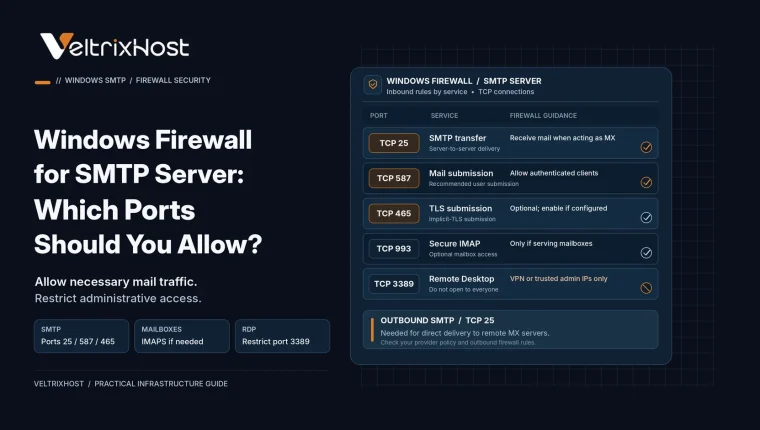
- Port 25: Usually server-to-server transfer.
- Port 587: Authenticated submission, commonly with STARTTLS.
- Port 465: Submission with implicit TLS.
PowerShell’s old Send-MailMessage command is obsolete and should not be your production security test. Use a maintained SMTP client to verify encrypted login and test-message delivery.
Choosing a Windows SMTP VPS
VeltrixHost Windows SMTP VPS Hosting lists Administrator/RDP access, outbound Port 25, and PTR/rDNS controls. Test connectivity from the actual VPS before configuring production mail.
Final Recommendation
To test SMTP using PowerShell, verify DNS, check TCP ports, inspect the listener, and read the SMTP greeting. Then test TLS, authentication, and real delivery separately.
FAQs
Does TcpTestSucceeded: True mean email works?
No. It confirms TCP connectivity, not successful SMTP delivery.
Can I test Port 25 without sending email?
Yes. Test-NetConnection establishes a TCP connection without submitting a message.
Why does Port 587 work when Port 25 fails?
Your network may restrict Port 25 while allowing authenticated submission on 587.