Configuring the Windows Firewall for SMTP server security helps protect mail software without interrupting legitimate delivery. Opening every port creates unnecessary exposure, while blocking the wrong connection can delay invoices, password resets, or incoming messages.
The correct rules depend on whether your Windows SMTP VPS only sends mail or also hosts inboxes.
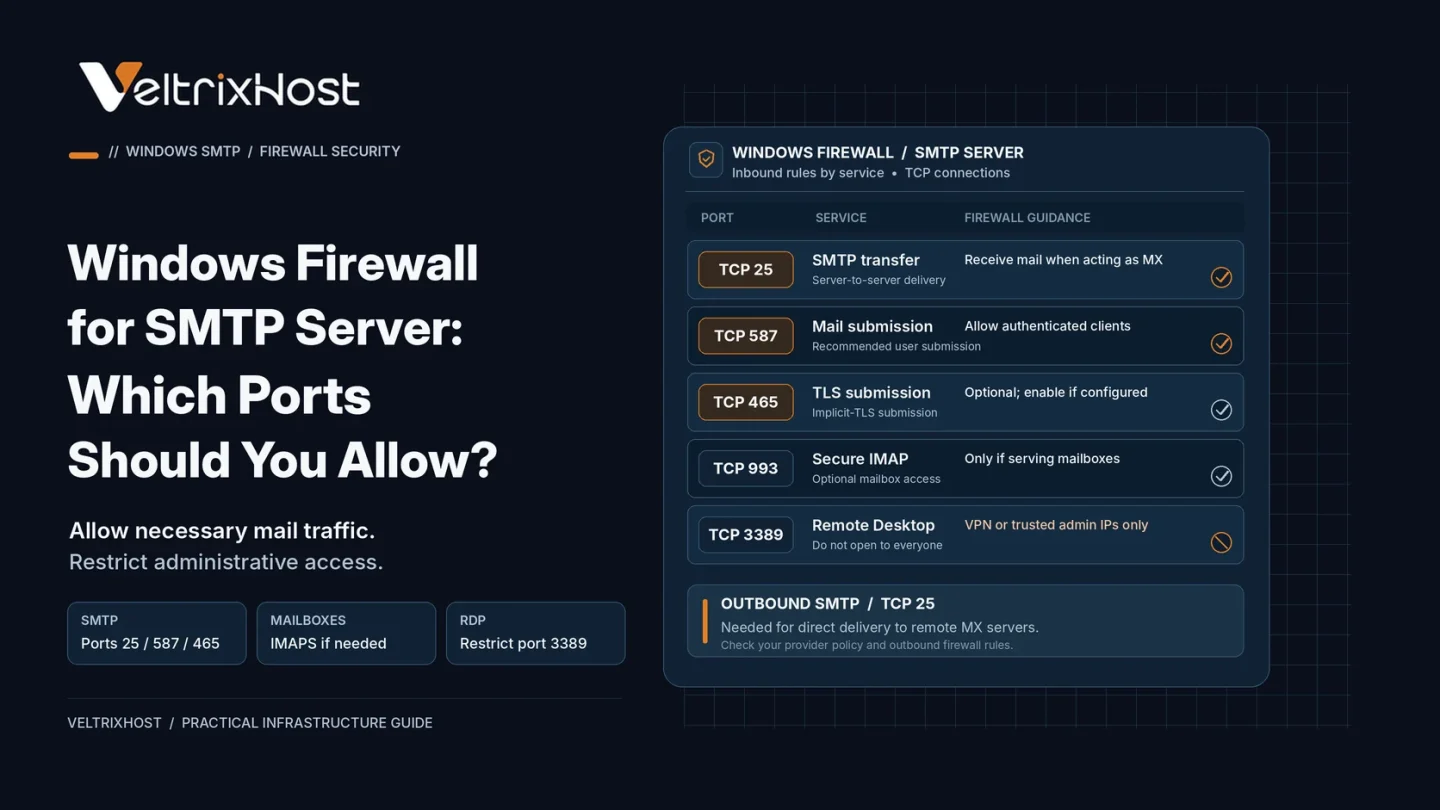
Windows Firewall for SMTP Server: Ports to Allow
| TCP Port | Purpose | When to Allow |
|---|---|---|
| 25 | Server-to-server SMTP | Outbound for direct delivery; inbound when receiving mail |
| 587 | SMTP submission with STARTTLS | Inbound if clients submit mail |
| 465 | SMTP submission with implicit TLS | Inbound if supported and used |
| 993 | Secure IMAP mailbox access | Inbound only when hosting IMAP |
| 995 | Secure POP3 mailbox access | Inbound only when offering POP3 |
| 443 | HTTPS webmail or administration | Inbound only for required web services |
| 3389 | Remote Desktop | Restrict to a VPN or trusted admin IPs |
These ports use TCP. Do not open IMAP, POP3, or webmail ports on an outgoing-only SMTP relay.
1. Configure Port 25 Correctly
For direct delivery to recipient mail exchangers, your server normally needs outbound TCP 25.
Allow inbound Port 25 only if your server receives mail from other SMTP servers. Opening the port is not enough: configure relay restrictions so unauthorized senders cannot forward messages through your system.
2. Secure SMTP Submission
If applications or email clients connect to your Windows mail server, use Port 587 with required STARTTLS or Port 465 with implicit TLS.
Require authentication and valid TLS certificates. You do not need both submission ports unless your software or clients use both.
3. Restrict RDP and Administration
Avoid exposing RDP to every internet address. Prefer VPN access or permit only known administrator IPs.
Keep management dashboards limited to trusted networks where practical. Before modifying RDP firewall rules, confirm you have working console access to avoid locking yourself out.
4. Create and Verify Firewall Rules
Open Windows Defender Firewall with Advanced Security, select Inbound Rules → New Rule → Port, and allow the necessary TCP ports for your installed services.
Specify network profiles and remote IP scope. Review existing rules because an older broad allow rule can defeat a newly added restriction.
Microsoft’s official Windows Firewall rules guidance explains rule scope and security practices.
Windows generally allows outbound traffic unless a rule blocks it. If you enforce outbound restrictions, remember DNS and other essential server connections.
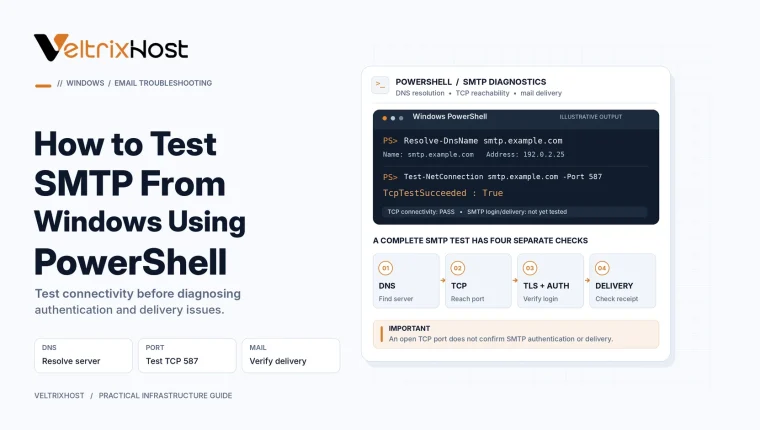
To test external SMTP connectivity in PowerShell, run:
Test-NetConnection gmail-smtp-in.l.google.com -Port 25
A successful test checks TCP connectivity, not whether messages will reach an inbox.
Choosing a Windows SMTP VPS
VeltrixHost Windows SMTP VPS Hosting provides Administrator/RDP access, Port 25 availability, and PTR/rDNS controls for self-managed servers.
Configure Windows Firewall to match MailEnable, SmarterMail, or your chosen application.
Final Recommendation
For Windows Firewall for SMTP server setups, permit only necessary mail traffic, isolate RDP, and verify both inbound and outbound connectivity. Recheck rules after software changes.
FAQs
Is outbound Port 25 enough for an SMTP relay?
For direct delivery it is essential, but DNS resolution and other supporting connections also matter.
Should I open both Ports 465 and 587?
Only when your mail software and clients need both.
Does opening Port 25 create an open relay?
No. An open relay results from incorrect mail-server authorization rules.