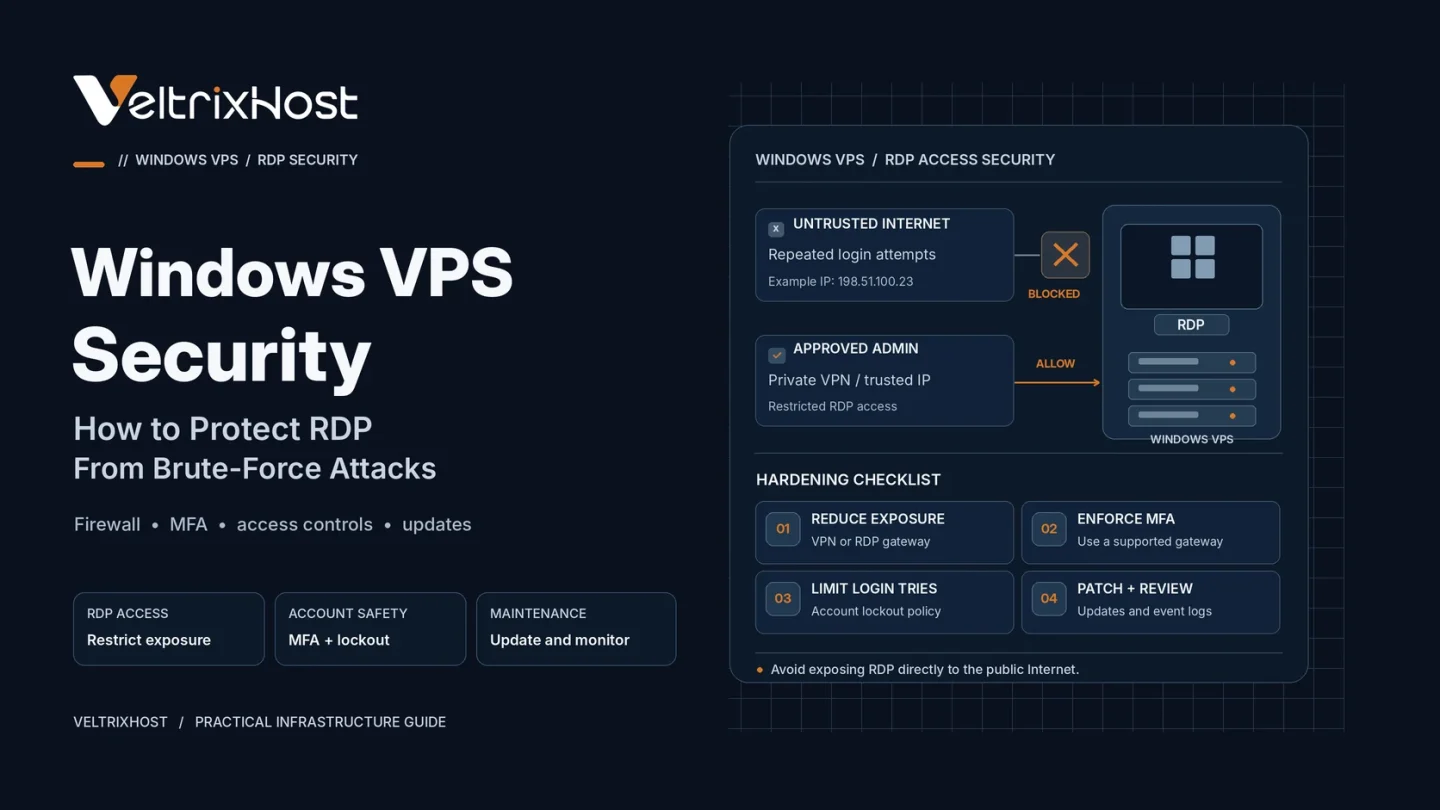
Windows VPS security is essential when managing a remote server through Remote Desktop Protocol (RDP). Attackers frequently target exposed RDP services, attempting repeated password guesses to gain unauthorized access.
Without proper protection, a compromised Windows VPS can expose business applications, sensitive files, and administrator credentials.
Fortunately, several practical security measures can significantly reduce these risks.
Why Is RDP Vulnerable to Brute-Force Attacks?
RDP allows administrators to access Windows servers remotely, usually through TCP port 3389.
When this port is publicly accessible, automated scanners can discover it and attempt repeated logins.
Attackers may also use leaked passwords or password-spraying techniques to target accounts.
Therefore, protecting RDP requires more than simply choosing a complicated password.
1. Restrict Public RDP Access
The strongest starting point is avoiding direct RDP exposure to the internet.
Use a trusted VPN or properly secured Remote Desktop Gateway. Alternatively, restrict inbound connections to known administrator IP addresses.
Configure Windows Defender Firewall and any provider-level firewall to enforce these restrictions.
Always verify alternative access before changing firewall rules.
2. Enable Network Level Authentication
Network Level Authentication (NLA) requires users to authenticate before establishing a full remote desktop session.
To check this setting, open System Properties → Remote → Remote Desktop and require Network Level Authentication.
NLA reduces certain attack risks but does not replace network restrictions or strong credentials.
3. Strengthen Administrator Credentials
Use long, unique passwords for every account with remote access.
Avoid shared administrator credentials and remove unnecessary RDP permissions.
Where practical, create individual accounts with only the privileges required.
Additionally, disable unused accounts and review Remote Desktop Users group membership regularly.
4. Configure Account Lockout Policies
Account lockout policies can limit repeated password attempts.
Open secpol.msc and navigate to:
Account Policies → Account Lockout Policy
Set a reasonable failed-attempt threshold, lockout duration, and reset period.
However, aggressive settings can allow attackers to intentionally lock legitimate users out.
5. Add Multi-Factor Authentication
Multi-factor authentication (MFA) provides another defense when passwords are stolen.
For Windows Server environments, MFA can be implemented through compatible Remote Desktop Gateway integrations or secure remote-access solutions.
Standard Windows RDP does not automatically provide MFA simply because RDP is enabled.
6. Keep Windows Server Updated
Install security patches regularly through Windows Update.
Also update remote-access software, security tools, and installed applications.
Schedule maintenance windows when updates require restarting the VPS.
7. Monitor Failed RDP Login Attempts
Open Windows Event Viewer and navigate to:
Windows Logs → Security
Look for Event ID 4625, which identifies failed logon attempts.
Repeated failures, unusual source addresses, and unfamiliar successful logins deserve investigation.
Where possible, configure alerts and centralized log collection.
8. Avoid Common Security Mistakes
Changing the default RDP port may reduce automated scanning noise, but it is not reliable protection against determined attackers.
Never disable your firewall simply to troubleshoot connectivity.
For official configuration guidance, review Microsoft’s Remote Desktop security recommendations.
Choosing a Secure Windows VPS
Before purchasing, confirm firewall support, recovery-console availability, backups, and administrator access.
VeltrixHost Windows VPS Hosting offers KVM-based Windows servers with RDP access and administrator control.
Because these plans are self-managed, customers must configure their operating system security.
Final Recommendation
Effective Windows VPS security starts with limiting public RDP access.
Combine VPN protection, NLA, strong credentials, appropriate lockout policies, regular updates, and login monitoring.
These measures provide stronger protection than relying on password complexity or changing port numbers alone.
FAQs
Is RDP safe on a Windows VPS?
Yes, when properly secured. Avoid exposing RDP directly to unrestricted internet traffic.
Does changing RDP port 3389 prevent attacks?
No. It may reduce automated scanning but does not prevent port discovery.
Can I enable MFA for Windows RDP?
Yes, through compatible gateway or remote-access solutions that support MFA.
How can I detect RDP brute-force attempts?
Review Windows Security logs for repeated Event ID 4625 failures and configure suspicious-login alerts.