Deploying a Linux VPS is only the beginning. Before hosting websites, databases, or applications, you need to protect your server against unauthorized access, vulnerable software, and configuration mistakes.
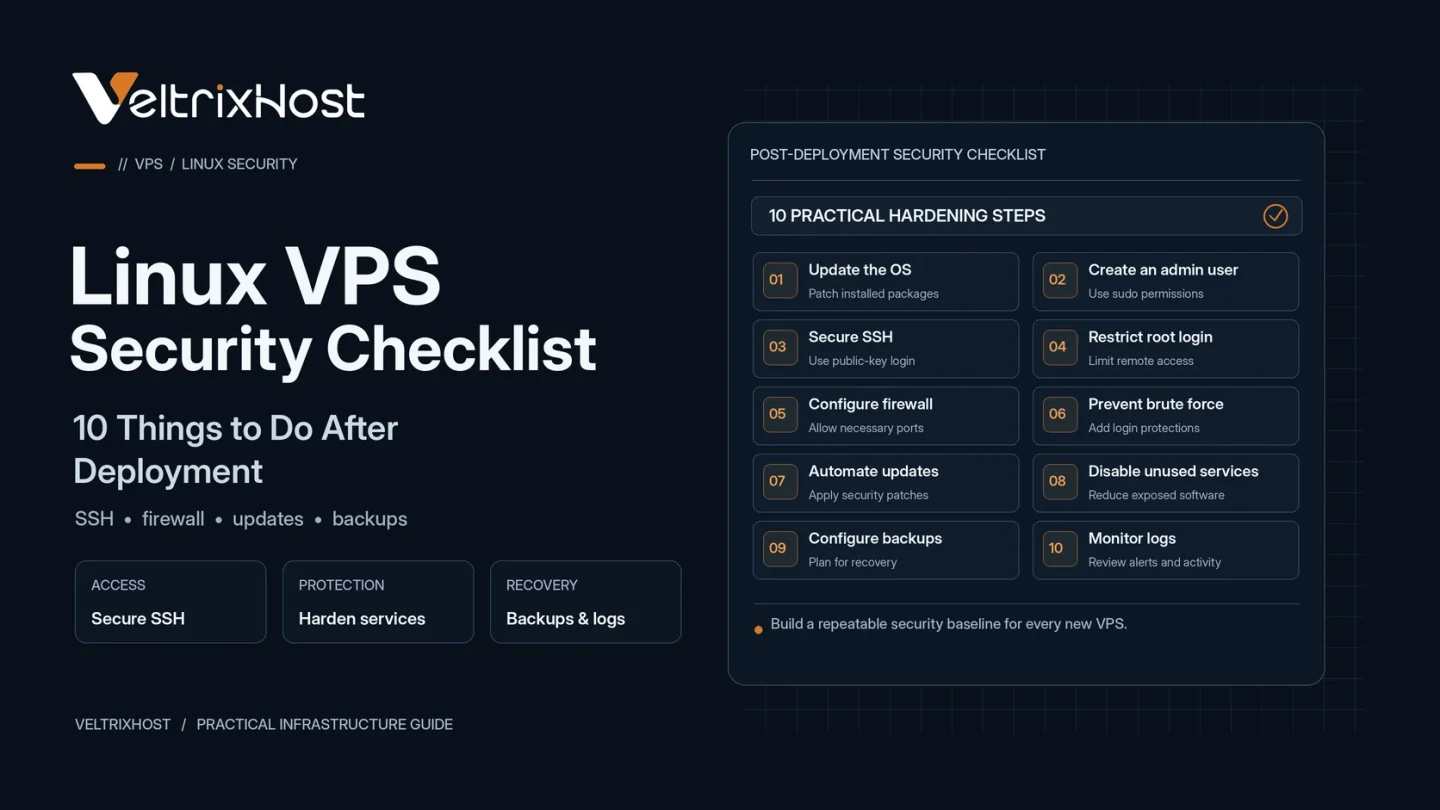
This Linux VPS security checklist covers 10 essential steps to secure a new server, reduce common risks, and establish reliable long-term protection.
Linux VPS Security Checklist: 10 Essential Steps
1. Update Your Operating System
Start by installing available security patches. On Ubuntu or Debian, run:
sudo apt update && sudo apt upgrade
Check whether automatic security updates are enabled. Schedule necessary reboots and keep applications updated alongside system packages.
2. Create a Non-Root Administrator
Avoid using the root account for everyday administration.
Create a separate user with appropriate sudo permissions. Grant only the privileges required for administrative tasks to reduce unnecessary exposure.
3. Secure SSH Access
Configure SSH key authentication instead of relying solely on passwords.
After verifying key-based access, disable direct root SSH login and password authentication where appropriate. Test changes in a separate session before disconnecting.
4. Configure Your Server Firewall
Use UFW, firewalld, or nftables to restrict incoming connections.
Allow your SSH port and necessary application ports before enabling restrictions. Block unnecessary traffic and review both IPv4 and IPv6 firewall rules.
5. Remove Unnecessary Services
Unused software increases your server’s potential attack surface.
Check listening services using:
sudo ss -tulpn
Disable unnecessary daemons, remove unused packages, and avoid exposing administrative dashboards or databases directly to the internet.
6. Add Brute-Force Protection
Tools such as Fail2ban can help identify repeated authentication failures and temporarily block offending IP addresses.
Combine rate limiting with strong authentication. Automated blocking provides an additional layer of defense, not a replacement for proper SSH configuration.
7. Review User Accounts and Permissions
Check existing accounts, authorized SSH keys, and sudo privileges.
Remove unused access, protect sensitive configuration files, and avoid overly permissive file permissions. Limit database and application credentials to their required functions.
8. Secure Websites and Applications
Install TLS certificates for public websites and keep CMS platforms, plugins, frameworks, and databases patched.
Protect application secrets, disable unnecessary debug features, and avoid exposing database ports publicly unless specifically required.
9. Enable Monitoring and Security Logs
Monitor CPU, memory, disk usage, authentication failures, and service availability.
Review system logs through journalctl and configure alerts for suspicious activity or unexpected resource spikes. Regular monitoring helps detect problems before they escalate.
10. Configure Reliable Backups
Maintain scheduled backups outside your VPS, preferably in a separate storage location.
Encrypt sensitive backups, define retention periods, and test restoration regularly. Remember that a snapshot alone is not a complete backup strategy.
Final Recommendation
Securing your VPS requires ongoing maintenance, not just initial configuration.
Follow the official Ubuntu Server Security Guidance for additional hardening recommendations.
If you need a customizable environment, explore VeltrixHost Linux VPS Hosting, featuring KVM virtualization and full root access for self-managed deployments.
FAQs
Is a Linux VPS secure by default?
A fresh installation may have basic protections, but secure administration, updates, firewall rules, and monitoring are still necessary.
Should I disable root SSH login?
Generally, yes, after confirming that a separate administrative account can successfully connect and use sudo.
Is a firewall necessary on a VPS?
Yes. A properly configured firewall reduces unnecessary network exposure and helps control access to server services.
How often should I update VPS security?
Check regularly, apply critical patches promptly, and review security settings whenever applications or services change.