Learning how to read Postfix logs helps you diagnose delayed invoices, missing password resets, and rejected messages on a Linux mail server. Instead of guessing, follow each message through its queue ID and the recipient server’s response.
1. Find Your Postfix Logs
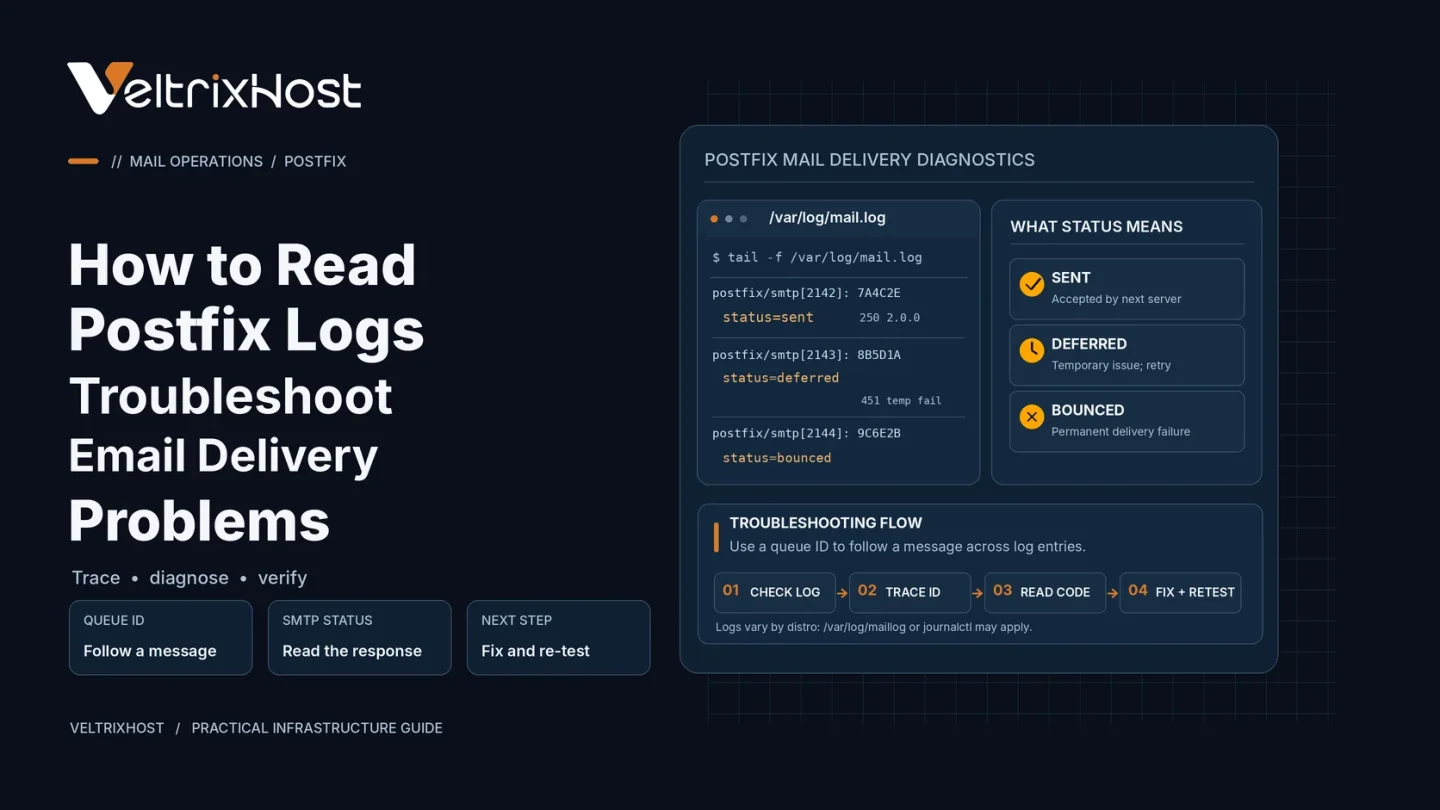
On many Ubuntu and Debian installations, Postfix activity appears in /var/log/mail.log. Watch new events with:
sudo tail -f /var/log/mail.log
Other systems use /var/log/maillog or the systemd journal. If the file is missing, try:
sudo journalctl --since "30 minutes ago" | grep 'postfix/'
Postfix can also write to a separately configured file. Check postconf maillog_file and your system logging configuration before assuming logging is broken.
2. Understand a Postfix Log Entry
A typical entry identifies a timestamp, process, queue ID, recipient, and delivery outcome. Common processes include:
- smtpd: Accepts incoming SMTP connections.
- cleanup: Processes messages entering the queue.
- qmgr: Schedules queued deliveries.
- smtp: Connects to another mail server for outbound delivery.
A queue ID links events for one queued message. For example, search a sample ID using:
sudo grep '3F2A42007D' /var/log/mail.log
Replace the ID and path with values from your own logs. Some connection rejections happen before a queue ID exists.
3. Decode Delivery Statuses
| Log result | Meaning | Next step |
|---|---|---|
status=sent | Next server accepted the message | Check downstream delivery if needed |
status=deferred | Temporary failure; retry expected | Inspect the response and queue |
status=bounced | Delivery failed permanently | Correct the stated cause |
reject | SMTP request was refused | Check the rejection policy or reason |
A 250 acceptance does not prove inbox placement. Similarly, SMTP 4xx replies usually indicate temporary problems, while 5xx replies indicate permanent failures.
4. Check the Queue and Common Errors
List waiting messages with:
sudo postqueue -p
Review the failure reason beside each deferred entry. Frequent causes include DNS lookup failures, blocked outbound Port 25, recipient rate limits, TLS errors, and incorrect relay authentication.
Run sudo postfix check to identify basic configuration or permission problems. Recipient-server rejection text can also identify authentication and reputation issues.
The official Postfix Debugging Howto explains further diagnostic steps.
5. Fix the Cause Before Retrying
Verify recipient MX records, outbound connectivity, SPF, DKIM, PTR/rDNS, and SMTP credentials as appropriate. After correcting the issue, allow normal retries or selectively retry affected messages.
Avoid repeatedly flushing the entire queue: it can worsen congestion. Do not delete queued mail without confirming its business importance.
For self-managed delivery, VeltrixHost SMTP VPS Hosting includes root access, outbound Port 25, and PTR/rDNS controls.
Final Recommendation
Read Postfix logs alongside queue data and actual SMTP responses. Start with one message, trace its queue ID, fix the specific failure, and monitor whether delivery recovers.
FAQs
Where are Postfix logs on Ubuntu?
Often /var/log/mail.log, but some installations use the systemd journal or custom logging.
What does status=deferred mean?
Postfix could not deliver yet and normally schedules another attempt.
Does status=sent mean inbox delivery?
No. It means the next server accepted the message, not necessarily that it reached the recipient’s inbox.